Create AI Video with Seedance 1.5 Pro
Create AI video from a prompt or source image, tune audio, duration, resolution, and aspect ratio, then generate a clip built for review and publishing.
One focused AI video sender
The sender keeps the create AI video workflow compact: prompt writing, image-to-video input, audio choice, lens behavior, resolution, duration, and aspect ratio stay visible before generation.
Create AI video for an 8-second cinematic product reveal from the uploaded image, keep the camera fixed, add soft synchronized studio ambience, and export a vertical social clip.
AI video workflow
Start with the shot
Create AI video by describing the subject, action, scene, and intended channel before choosing quality settings.
Add a reference image
When a product, character, or layout must stay recognizable, create AI video from an image and describe the motion around it.
Tune delivery settings
Create AI video with the aspect ratio, duration, resolution, fixed-lens behavior, and audio setting that match the final placement.
Review the result
After generation, create AI video variants by checking continuity, subject stability, audio timing, and whether the clip is edit-ready.
Why use this sender
Prompt-first creation
Create AI video from a clear scene brief instead of a scattered set of controls; the sender keeps the creative direction readable.
Image-to-video support
Upload a starting image when you need to create AI video that preserves a product, character, frame, or campaign visual.
Synchronized audio
Create AI video with sound when ambience, action cues, or a richer social clip matters more than a silent render.
Delivery control
The workflow helps teams create AI video for widescreen, square, portrait, vertical, or cinematic placements without rebuilding the prompt.
Fixed-lens option
Use fixed lens to create AI video that feels stable for product shots, app explainers, and scenes where motion should stay controlled.
Credit-aware generation
Before you create AI video, the sender shows the credit impact of duration, resolution, audio, and mode choices.
Planning examples
These real video references show how to create AI video prompts that balance subject control, motion, audio, and publishing format.
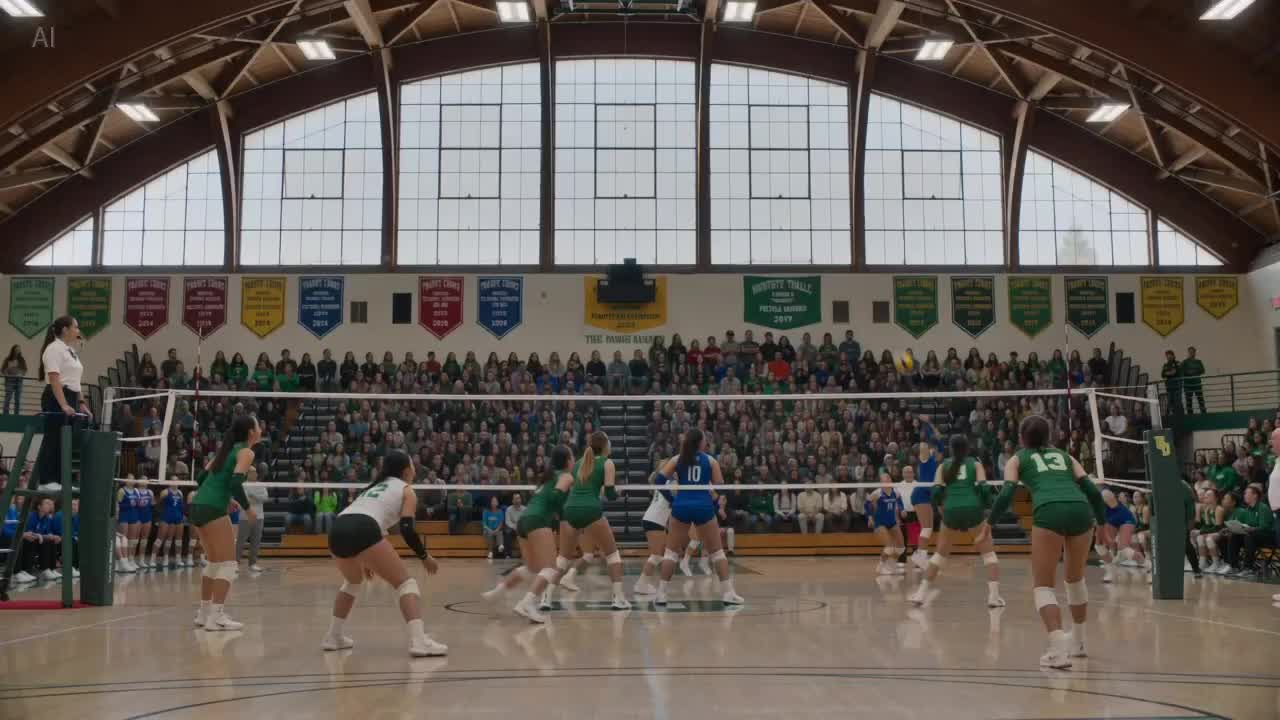
Sports scene with sound
Create AI video for a high-energy sports clip by naming the action, crowd atmosphere, camera stability, and audio timing.
MP4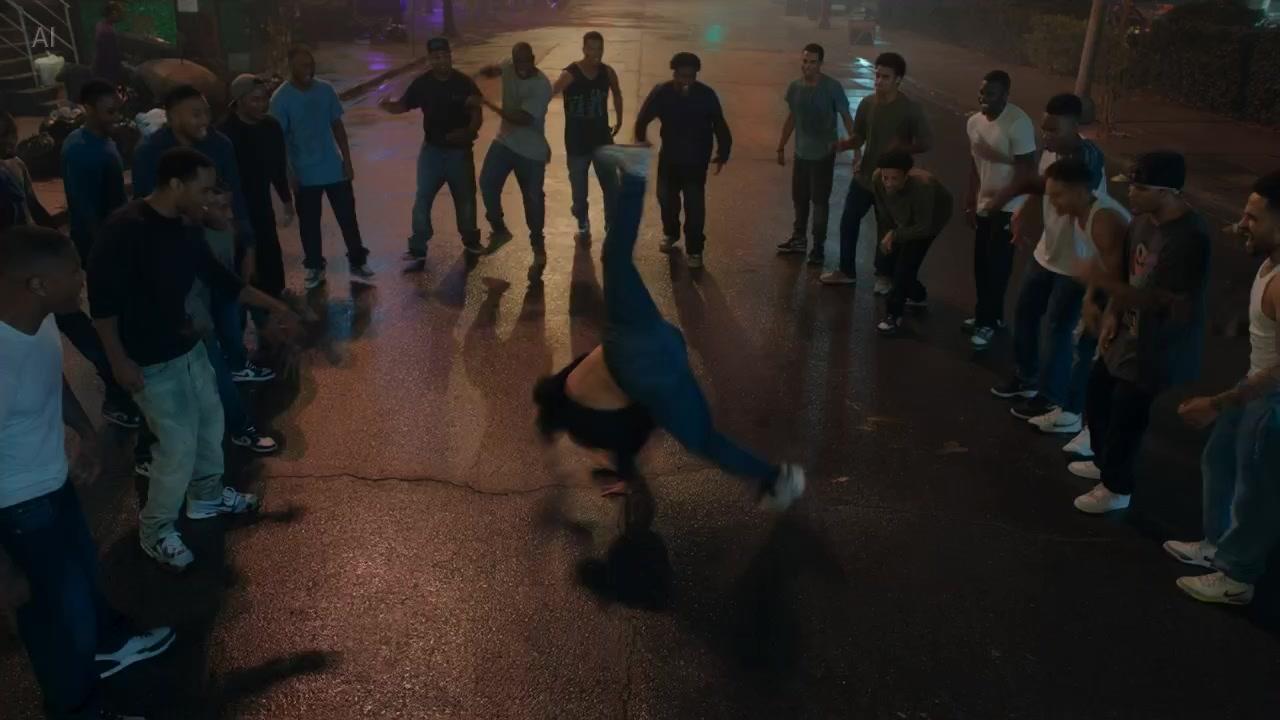
Street dance energy
Create AI video for social content by specifying rhythm, group movement, duration, and a vertical or widescreen delivery format.
MP4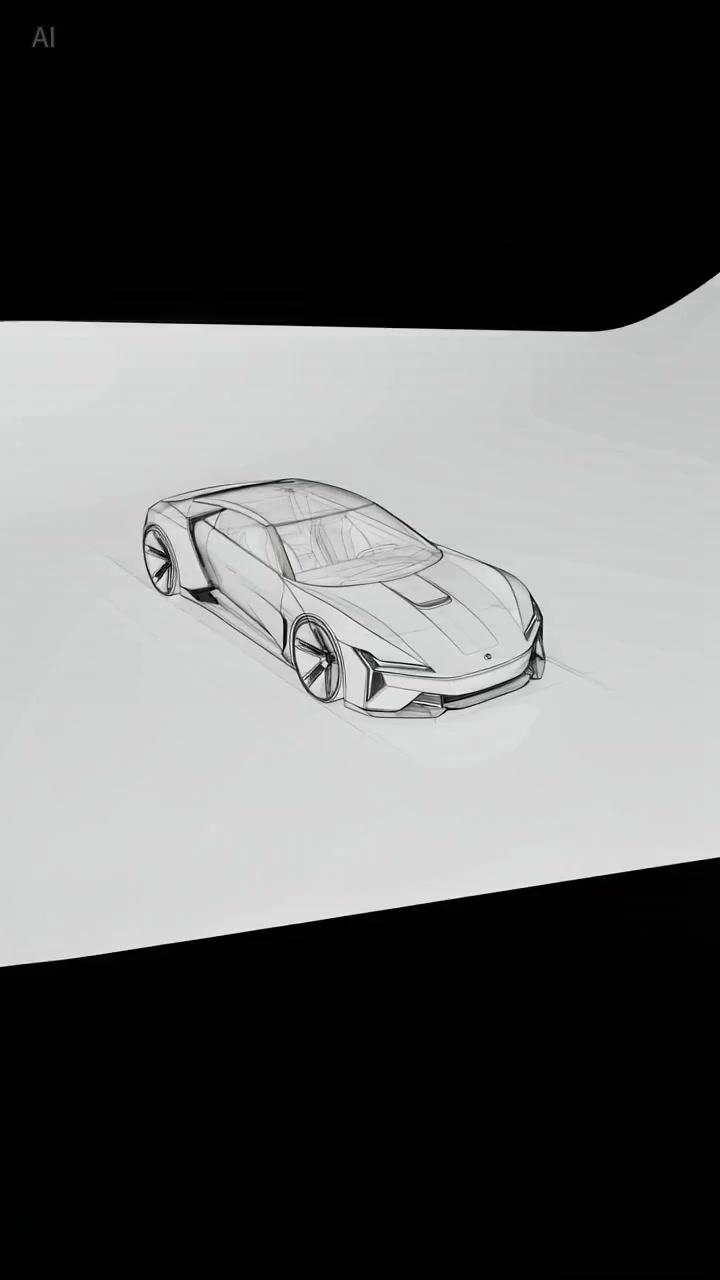
Sketch to motion
Create AI video from a static image by asking Seedance 1.5 Pro to preserve the subject while adding believable movement.
MP4How to make clips ready for review
Create AI video work usually fails when the brief is too vague. A stronger prompt starts with the job of the clip: product reveal, social teaser, story beat, background loop, or campaign concept. It then names the subject, environment, motion, and channel so Seedance 1.5 Pro can produce footage reviewers can judge against a real goal.
The next decision is whether to create AI video from text only or from an image reference. Text-to-video is best for open concepts and quick ideation. Image-to-video is better when the product, character, prop, logo placement, or composition must remain recognizable while motion is added.
Audio is not just a checkbox. Create AI video with synchronized audio when the scene needs atmosphere, impact, crowd sound, room tone, or a more finished social feel. Leave audio off when the final edit will use brand sound later, which keeps costs predictable.
Delivery settings should be part of the creative brief. When you create AI video, choose aspect ratio, duration, and resolution before generating so the result is judged in the same format it will be published. Fixed-lens mode helps product shots and clean explainers avoid distracting camera drift.
A production team should treat every create AI video result like footage, not a novelty render. Check subject consistency, object behavior, audio timing, and edit readiness. The sender keeps those choices together so iterations can move from first idea to approved direction with fewer restarts.
AI video FAQ
What does create AI video mean here?
Create AI video means generating a short video clip from a prompt or image reference with Seedance 1.5 Pro controls for audio, duration, resolution, aspect ratio, and fixed-lens behavior.
Can I create AI video from an image?
Yes. Upload an image when you need to create AI video around a specific product, character, drawing, layout, or campaign visual that should remain recognizable.
Can I create AI video with audio?
Yes. Seedance 1.5 Pro supports synchronized audio, so you can create AI video clips with ambience, action sound, or stronger short-form storytelling.
Which formats are supported?
You can create AI video in common square, portrait, landscape, vertical, and cinematic aspect ratios, with 4, 8, or 12 second durations.
When should I use fixed lens?
Use fixed lens when you create AI video for a stable product shot, app demo, character pose, or controlled scene where camera drift would hurt review quality.
Is this only for experiments?
No. The create AI video workflow is designed for practical review: define the shot, choose delivery settings, generate, then compare whether the clip is ready for editing or publishing.
Create AI Video with Seedance 1.5 Pro
Create AI video from a prompt or source image, tune audio, duration, resolution, and aspect ratio, then generate a clip built for review and publishing.